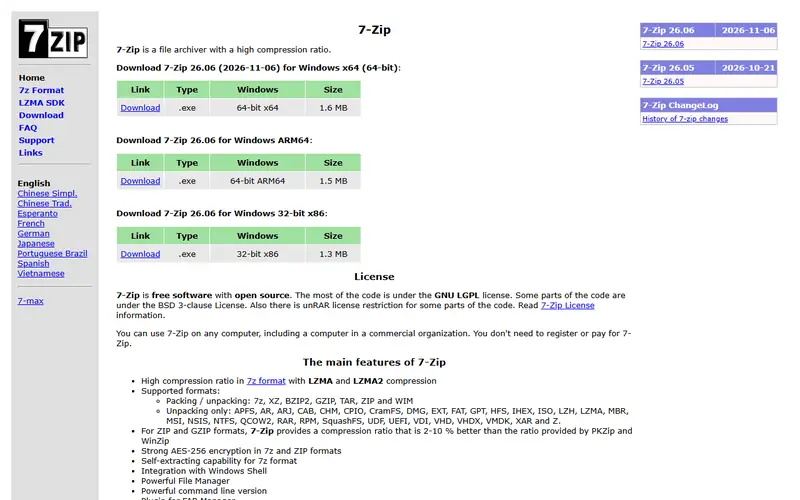
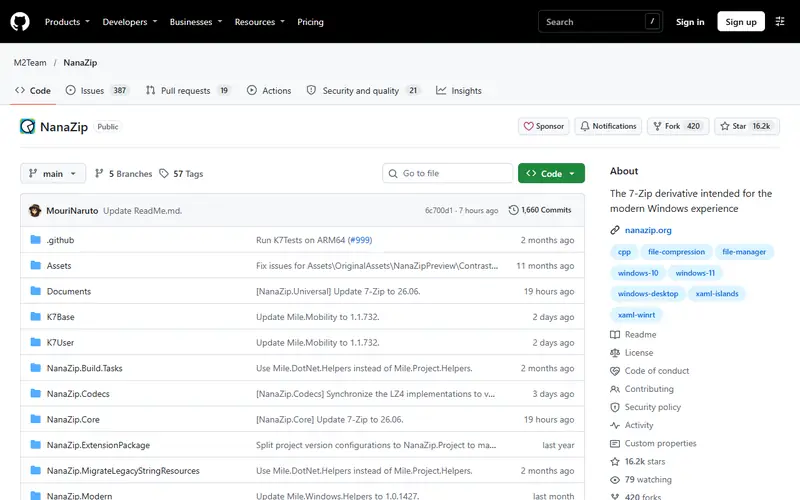
Quick pick: The standard WinRAR replacement is 7-Zip (free even for businesses, and it extracts .rar). On Windows 11, NanaZip fits neatly into the right-click menu.
Reviewed November 2026 against each vendor's official website.
Official ways to use WinRAR for free
Windows 11 (version 23H2 and later) can open .rar and .7z files in File Explorer with nothing extra to install.
WinRAR is shareware: after the 40-day trial it keeps working but nags you to buy a license. Long-term use, especially at work, requires a paid license.
Free plans and trial lengths are set by the vendor and can change. Check the official website before signing up.
Extracts .rar, creates .7z and supports AES-256 password protection, free for any use.
The best-known open-source archiver: extracts .rar, .zip, .7z, .iso and more, with AES-256 passwords. It also creates .7z archives with a high compression ratio.
Built into Windows 11: opens .rar and .7z without installing anything.
Since version 23H2, Windows 11 opens .rar, .7z and .tar.gz files right in File Explorer. Double-click the file or right-click and choose "Extract All".
Open source: anyone can use, study and modify it, including businesses. Free: no cost, but the code is closed. Freemium: a lasting free plan with paid tiers for extra features. Source available: code is public but the license adds conditions.
FAQ
What is the best free alternative to WinRAR?
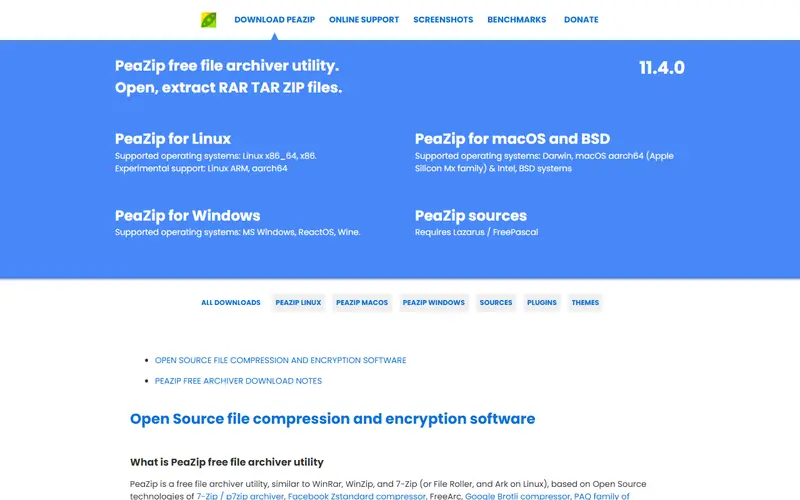
The most popular picks are 7-Zip, NanaZip, PeaZip and Windows 11 built-in extractor. The standard WinRAR replacement is 7-Zip (free even for businesses, and it extracts .rar). On Windows 11, NanaZip fits neatly into the right-click menu.
Can 7-Zip create .rar files?
No. Only WinRAR can create the .rar format. 7-Zip extracts .rar files just fine; when compressing, use .zip (opens anywhere) or .7z (smaller files).





 IDM (Internet Download Manager)
 TeamViewer
 Google Drive, Dropbox
 LastPass, 1Password
 Windows